
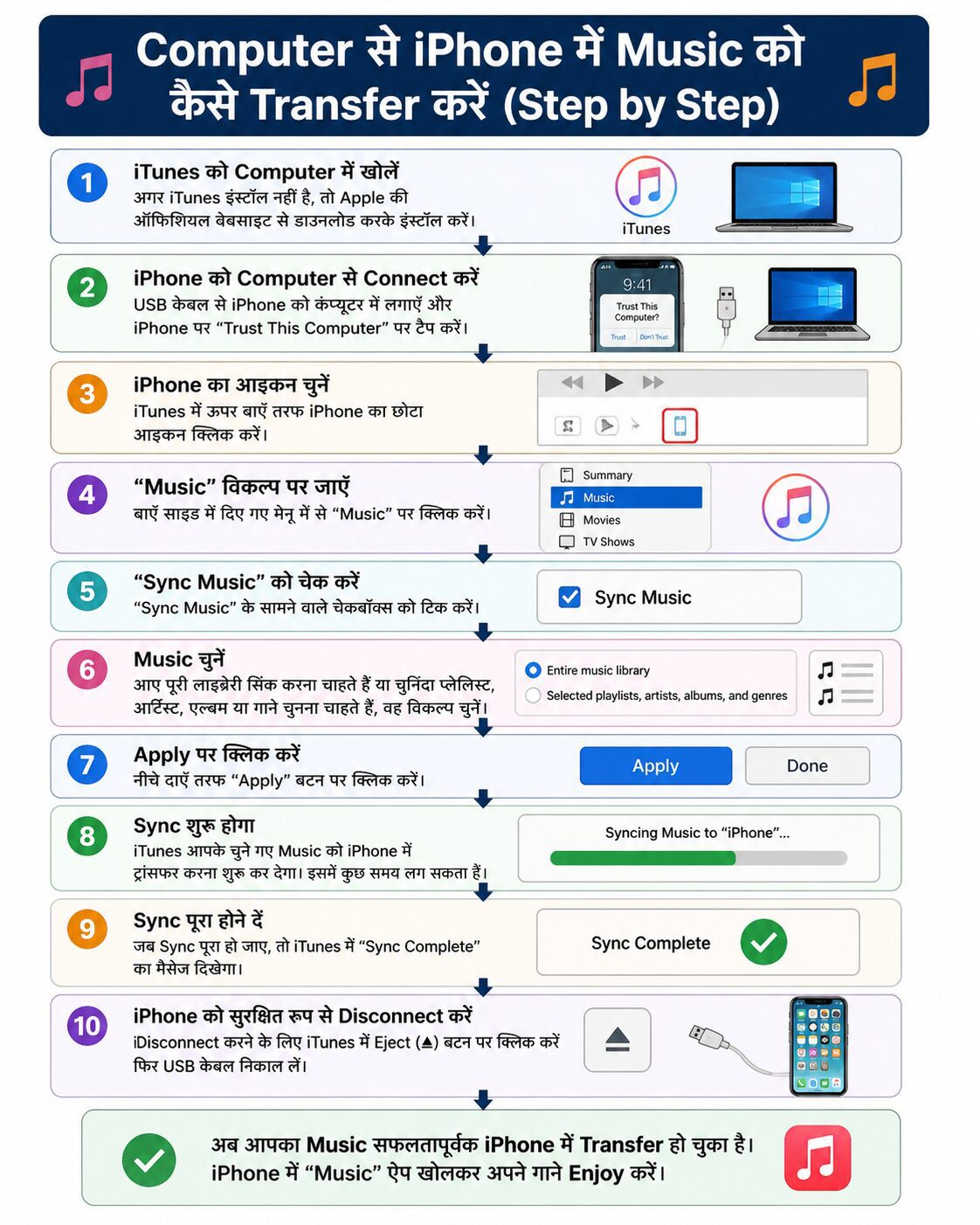
???? Method 1: iTunes से Music Transfer करें (Official तरीका)
Apple का official तरीका है iTunes के माध्यम से music transfer करना।
???? Step 1: iTunes Download और Install करें ?(Computer to iPhone)
- Windows users: Apple की website से iTunes download करें
- Mac users: macOS में iTunes पहले से या Finder में integrated होता है
???? Step 2: Music Library में Songs Add करें
- iTunes खोलें
- “File” → “Add File to Library” या “Add Folder to Library” पर क्लिक करें
- अपने computer से songs select करें
???? Step 3: iPhone Connect करें
- USB cable से iPhone को computer से connect करें
- iTunes में device icon दिखाई देगा
???? Step 4: Music Sync Enable करें
- iPhone icon पर क्लिक करें
- “Music” tab में जाएं
- “Sync Music” option को enable करें
???? Step 5: Songs Select करें
- Entire library या Selected playlists, artists, albums चुन सकते हैं
???? Step 6: Apply और Sync करें
- “Apply” या “Sync” पर क्लिक करें
- कुछ ही मिनटों में music आपके iPhone में transfer हो जाएगा
???? Method 2: Finder (Mac Users के लिए – macOS Catalina और बाद में)
अगर आप Mac use कर रहे हैं, तो iTunes की जगह Finder इस्तेमाल होता है।
Steps:
- iPhone को Mac से connect करें
- Finder खोलें
- Sidebar में iPhone select करें
- “Music” tab में जाएं
- “Sync Music onto iPhone” enable करें
- Songs select करें और “Apply” पर क्लिक करें
???? Method 3: बिना iTunes के Music Transfer करें
अगर आप iTunes use नहीं करना चाहते, तो ये alternative methods use कर सकते हैं।
???? Option 1: Third-party Software
- WALTR PRO
- AnyTrans
Steps:
- Software install करें
- iPhone connect करें
- Music files drag & drop करें
- Automatically iPhone में transfer हो जाएगा.
???? Option 2: Cloud Services (Wireless तरीका)
आप cloud का use करके भी music transfer कर सकते हैं:
- Google Drive
- Dropbox
Steps:
- Computer से songs upload करें
- iPhone में app खोलें
- Songs download करें
???? Option 3: Apple Music Sync (Subscription Method)
अगर आपके पास Apple Music subscription है:
Steps:
- Computer में iTunes खोलें
- Songs add करें
- “Sync Library” enable करें
- iPhone में same Apple ID से login करें
- Songs automatically sync हो जाएंगे
⚠️ Important Tips (ध्यान रखने वाली बातें)
- iTunes sync करने से पुराने songs delete हो सकते हैं
- हमेशा latest version का software use करें
- Original USB cable का use करें
- File format (MP3, AAC) compatible होना चाहिए
???? Conclusion
Computer से iPhone में music transfer करने के कई आसान तरीके हैं। अगर आप simple और official तरीका चाहते हैं, तो iTunes best option है। Mac users के लिए Finder convenient है, जबकि fast और flexible experience के लिए WALTR PRO या cloud apps भी अच्छे हैं।
itune gift card code how to transfer music from android to iphone how to transfer music from laptop to iphone english to hindi transfer Transfer music from computer to iPhone 2026 PC से iPhone में गाने कैसे डालें Transfer music to iPhone without iTunes 2026 iPhone music transfer software free How to sync music from Windows 11 to iPhone Mac to iPhone music transfer Finder Best way to put songs on iPhone from PC Wireless music transfer computer to iPhone iPhone में म्यूजिक कॉपी कैसे करें




Hmm it appears like your blog ate my first comment (it was extremely long) so I guess I’ll just sum it up what I submitted and say, I’m thoroughly enjoying your blog. I too am an aspiring blog blogger but I’m still new to everything. Do you have any helpful hints for novice blog writers? I’d definitely appreciate it.
I intended to send you the very small note in order to give thanks once again with the pleasing views you have documented on this website. It’s certainly remarkably generous with you in giving openly what many individuals could possibly have made available for an e-book to earn some cash on their own, certainly since you could have tried it if you wanted. These techniques as well acted to become easy way to comprehend someone else have a similar eagerness the same as my personal own to know the truth a little more with regards to this issue. I am sure there are several more pleasurable moments up front for people who browse through your blog.